


If within your affiliate project you want to process products from e-shops that you cooperate with through the affiliate network, you will need access to their product feed so that the processing and placement of the feeds on your website can be automated.
Feed exported from CJ
The advertiser imports product information directly into CJ.com. The feed follows the specification for a Google Shopping feed and is completely different from, for example, the previously mentioned Heureka.
Besides having the feed available from a specific URL, there is also the option of delivery via (S)FTP or email. The output format also depends on what the partner chooses and is typically XML or CSV. The partner receives the feed compressed in a ZIP file.
An advantage is that the feed can be obtained directly in CJ, so it is not necessary to request it from the affiliate program manager. Programs that offer a feed can be recognized by the “P” (Products) icon in the program detail.
Example (CJ.com Account Manager > Advertisers):

The output feed is already tailored to the specific partner website that the partner selects. If you want to use the feed for one website, there is no need to modify the affiliate links.
Specification of the feed exportable from CJ
The feed follows the specification for Google Shopping. Therefore, at minimum, the following required data is always available:
| id |
| title |
| description |
| price |
| link |
| availability |
| condition |
Typically, additional information is also available, such as category, product image URL, etc. Complete information about all the fields that may appear in the feed is available here.
An example of the output feed in XML can be found below.
<?xml version=”1.0″ encoding=”UTF-8″?>
<rss xmlns:g=”http://base.google.com/ns/1.0″ version=”2.0″>
<channel>
<title>My E-shop Products</title>
<link>https://www.mojeshop.cz</link>
<description>Product feed for Google Merchant Center</description>
<item>
<g:id>B75806</g:id>
<g:title>Red Sports Sneakers</g:title>
<g:description>Stylish red sports sneakers for an active lifestyle.</g:description>
<g:google_product_category>Apparel & Accessories > Shoes</g:google_product_category>
<g:product_type>Footwear > Sneakers</g:product_type>
<link>https://www.mojeshop.cz/adidas-samba-og-cloud-white-b75806.html</link>
<g:image_link>https://www.mojeshop.cz/images/cervene-tenisky.jpg</g:image_link>
<g:additional_image>https://www.mojeshop.cz/images/tenisky-detail.jpg</g:additional_image>
<g:condition>new</g:condition>
<g:availability>in stock</g:availability>
<g:price>656.99 CZK</g:price>
<g:sale_price>560.99 RON</g:sale_price>
<g:gtin>1234567890123</g:gtin>
<g:brand>Adidas</g:brand>
<g:item_group_id>101132</g:item_group_id>
<g:color>alb</g:color>
<g:gender>unisex</g:gender>
<g:age_group>adult</g:age_group>
</item>
</channel>
</rss>
Feed Export Settings
To make the feed accessible, it is necessary to perform the initial setup in the partner account on CJ. The setup process includes the following steps.
- Creating the export
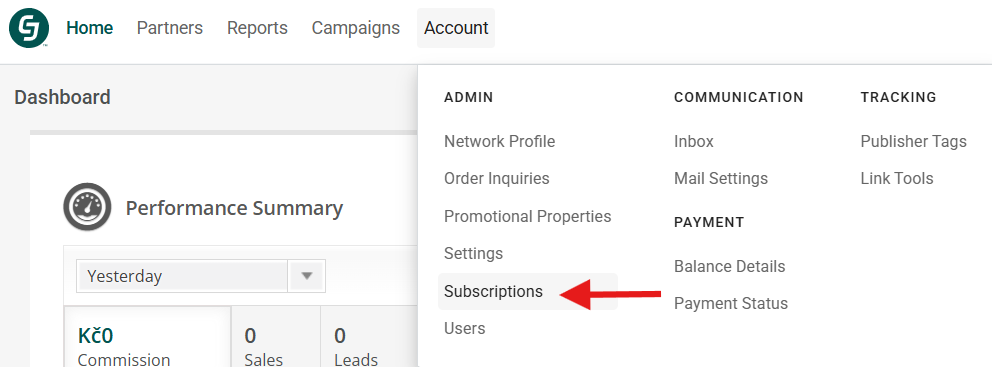
Go to the “Account > Subscriptions” section and use the “Create product export” button.

2. Export Settings
Within the export settings, you need to select:
- Feed Format: Choose one of two options, Shopping (Google format) or Travel and Experiences, which is used for travel and experiences.
- Notification Email / Email(s) for Notifications: Select the user(s) who will receive email notifications related to this export.
- Export Format: You can choose from a variety of formats such as XML, CSV, etc. This option determines the structure of the output. If you need a standard XML feed, select XML.
- Date Format: Dates (e.g., the end date of an offer) in the feed will be either in MM/DD/YYYY (e.g., 12/31/2018) or DD/MM/YYYY (e.g., 31/12/2018), depending on the option you choose.
- Website: Select the website where you will use the products from the feed. Affiliate links in the feed will be adjusted for the selected website. If you need to use the feed across multiple projects, see the section below.
- Name of Subscription: Any name you want to assign to the export in the interface. For clarity, it is recommended to use the same name as the advertiser whose feed you are exporting.
- Delivery Notifications: Determines whether you will receive notifications for each feed update. If you want the feed to be available at a CJ URL (CJ HTTP/S method), keep notifications enabled at least until the first feed generation, so that the email with the URL where the feed is available is sent to you.
- Transport Method: For methods starting with “CJ”, you will actively download the feed from CJ. For other methods, CJ will deliver the feed via FTP to your server or send it by email. To access the feed at a specific CJ URL, choose the CJ HTTP/S methods.
- Delivery Schedule: Determines when the feed will be generated.
Settings to obtain the XML feed available at a specific CJ URL:

3. Selecting the Advertiser’s Feed
When choosing which feeds to export, you have 2 options:
- Select to export feeds from all advertisers whose programs you are enrolled in and who have made a feed available to partners in CJ.
- Choose one or more feeds from those that are available.
From the “Select a Feed” menu, select the advertisers whose feeds you want to include in the export. The menu will only display advertisers whose programs you are enrolled in and who offer a product feed.
Selecting one or multiple feeds:

You can select a single feed, multiple feeds, or even all feeds at once. If you have chosen the CJ HTTP/S methods, the URLs will contain the same export ID, and each feed’s URL will be sent to you in separate notification emails.

Once you have selected the feeds, click Save.

You will then see a new entry among the exports with the name you assigned.
4. Generating a Password
If you are setting up your first export and have chosen the CJ HTTP/S or CJ FTP/SFTP method, you will need a password to access the feed. It will be sent to you automatically by email from datatransfer@cj.com.
Example of an email with the generated HTTP/S password:

The Username is always your CJ partner account ID.
5. Notification with Export URL
If you have chosen CJ HTTP/S as the transport method, the URL where the feed will be available may not arrive immediately. The first delivery of the feed URLs from CJ can happen right away, but it may also take some time—in some cases, up to an hour.
Example of the first email for a newly created export:

Subsequent notifications are sent individually for each feed whenever it is updated.
For reference: Manually Constructing the URL
The URL where the feed will be available has a specific structure, so it is possible to construct it manually as well.
https://datatransfer.cj.com/datatransfer/files/{CID}/outgoing/productcatalog/{SUBID}/{Advertiser Account Name}-{Feed Name}-shopping.{Format}.zip
- CID = Partner account ID, which you can find after logging in at the top right corner.
- SUBID = Export ID, which you can find in Account > Subscriptions, in the “Id” column.
- Advertiser Account Name and Feed Name are visible in step 3), when selecting the feed (Advertiser – Feed).
- Format depends on your choice in the settings. If it is XML, this will be “xml”.
All spaces or commas in the advertiser or feed names must be replaced with underscores, i.e., “_”.
Login Credentials in the URL
You can include the username and password in the URL so that you don’t have to enter them manually. The structure is then as follows:
https://{username}:{password}@datatransfer.cj.com/datatransfer/files/{CID}/outgoing/productcatalog/{Advertiser Account Name}-{Feed Name}-shopping.{Format}.zip
The resulting URL can then look like the example below (where 1234567 is the username, “mojeheslo” is the password, and 987654 is the export/subscription ID):
https://1234567:mojeheslo@datatransfer.cj.com/datatransfer/files/1234567/
outgoing/productcatalog/987654/MALL_CZ-Products_Mall_CZ-shopping.xml.zip
If you plan to import the feed, for example, into WordPress using the WP All Import plugin, you will need to enter it in this way, with the password.
Using the URL with login credentials in the WP All Import plugin for WordPress:

API as an Alternative to Export via Subscription
If you need to obtain a smaller number of products, for example from different advertisers at the same time in a single XML feed, using the CJ Product API can be an interesting alternative for you.
The API is significantly more flexible than traditional XML feeds. It allows you to filter products in the output feed by keywords, advertisers, price, and much more. You can also choose exactly which product information you want to retrieve, so you don’t have to download data that you won’t use.
The documentation for the Product Search API is available here.